1. Find the clearest source you can
Before restoring, check whether the blur belongs to the original photograph or to its digital copy. If the paper print looks clearer, scan or photograph it again. If a family member sent you a small chat preview, ask for the original file. Avoid taking a screenshot of that preview and feeding it into another enhancement app.
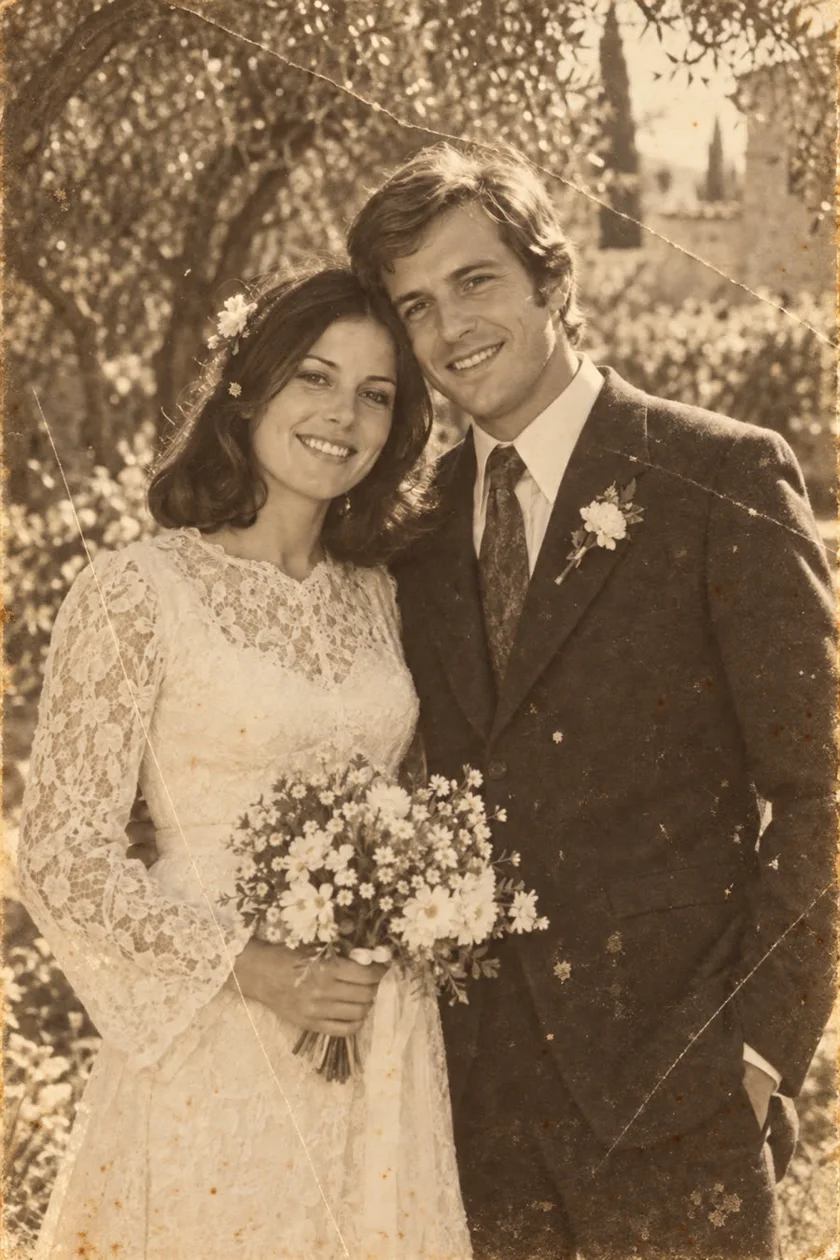
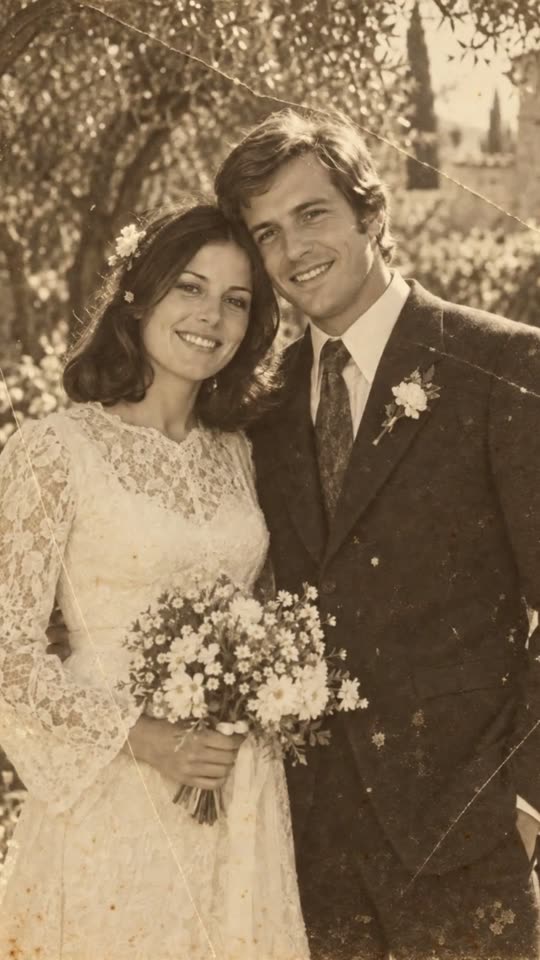
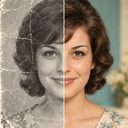
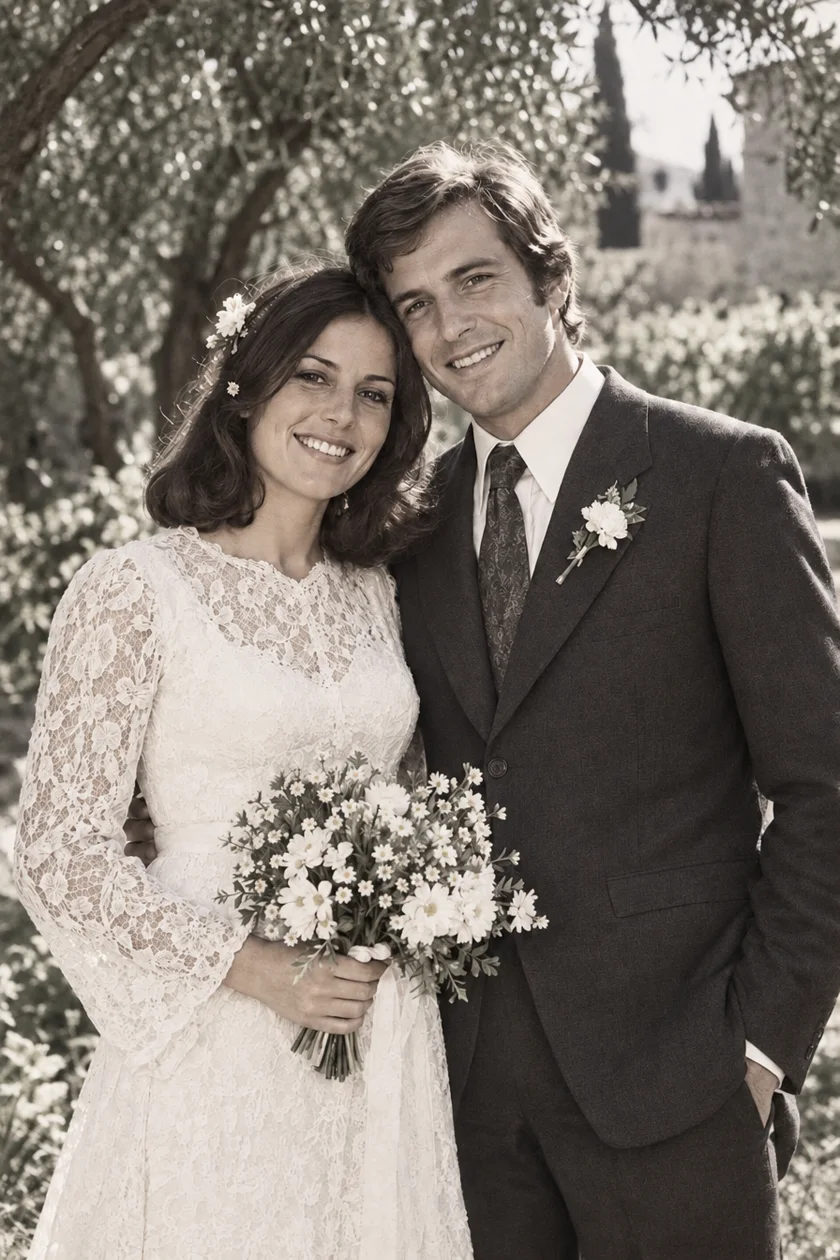
Inspect the face in the source at a useful viewing size. Can you see the outline of the eyelids, the mouth, and the nose? When those details are missing, a more detailed result necessarily includes interpretation. More visible texture does not mean more recovered evidence.
Research such as CodeFormer distinguishes visual quality from fidelity. It is not a test of PixAgain, but it helps explain why a convincing face still needs comparison with the source.
2. Choose what must stay the same
Make a short checklist before you see the restored result. This helps you judge similarity instead of simply preferring a sharper image. Include distinctive features that matter to the family: uneven eyebrows, a gap between teeth, a familiar expression, or a particular pair of glasses.
Keep another photograph of the person nearby if you have one, ideally from a similar age and angle. Use it as a visual reference for your own review. PixAgain’s normal restoration flow takes the selected image; it does not offer an identity-reference upload field.
- Face shape and the distance between the eyes.
- Eyebrows, eyelids, gaze, and the shape of glasses.
- Mouth shape, visible teeth, and expression.
- Hairline, wrinkles, facial hair, and distinctive marks.
3. Restore the source, not a chain of edits
Select the source photo in PixAgain on Android and tap Restore photo. Remote AI processing requires Internet, and the first successful photo restoration is free. Keep the source separate from the result so that you can return to it.
Do not keep sending an already generated face through more enhancement tools just because the first result looks soft. Each pass can build on details introduced by the previous one. If you choose to make another attempt, use the best original capture and compare the alternatives against that same reference.
4. Review the face at two sizes
First view the whole portrait at an ordinary size. Does it still feel like the same person? Then enlarge the face enough to compare specific features. Excessive zoom can make you focus on pixel texture while missing a changed expression. In group photographs, check every face; a pleasing main subject does not validate the people in the background.
Treat newly readable writing with the same caution. A name on a uniform, a date on a wall, or a badge can become convincing without becoming correct. Verify such details against an independent source.
| If you notice… | What to do |
|---|---|
| A sharper image with an unfamiliar expression | Prefer the more faithful source or seek selective manual work. |
| Unnatural teeth, eyes, or skin | Do not use crispness as the only measure of quality. |
| Different results in different faces | Evaluate each person separately before sharing. |
| New details that were invisible before | Label them as reconstruction, not verified history. |
5. Keep the version you trust
A slightly soft but familiar portrait may be the better family keepsake. If only a small area needs work, a manual editor with layers and masks can allow selective changes; Adobe documents these non-destructive output options for its Neural Filters. PixAgain does not expose those editing controls.
Keep the untouched capture and clearly label the restored file. Ask a relative who knew the person to compare them if appropriate. Their recollection is useful context, though it is not proof of every reconstructed detail. For archival use, preserve the source alongside any enhanced version.
Restore the photo. Keep the feeling.
Start with one free restoration. Decide what comes next after you see your result.
 Plans ↗
Good questions.
Can an AI restoration keep a face exactly unchanged?
There is no guarantee, especially if the source is blurred, tiny, or damaged. Compare proportions and distinctive features with the original before accepting the result.
Does a higher-detail result mean it is more accurate?
Not necessarily. It may look clearer while introducing new texture or altering features. Accuracy and visual sharpness are different things.
Can PixAgain use a second face photo as a reference?
The normal restoration workflow uses the photo you select. Keep another portrait nearby for your own comparison; there is no separate identity-reference upload field.
Sources & further reading
- CodeFormer research paper: the trade-off between quality and fidelity ↗
- Adobe: generative Neural Filters and non-destructive outputs ↗
Written with AI assistance; product details checked against PixAgain. Read our editorial approach.