Begin with the problem you want to solve
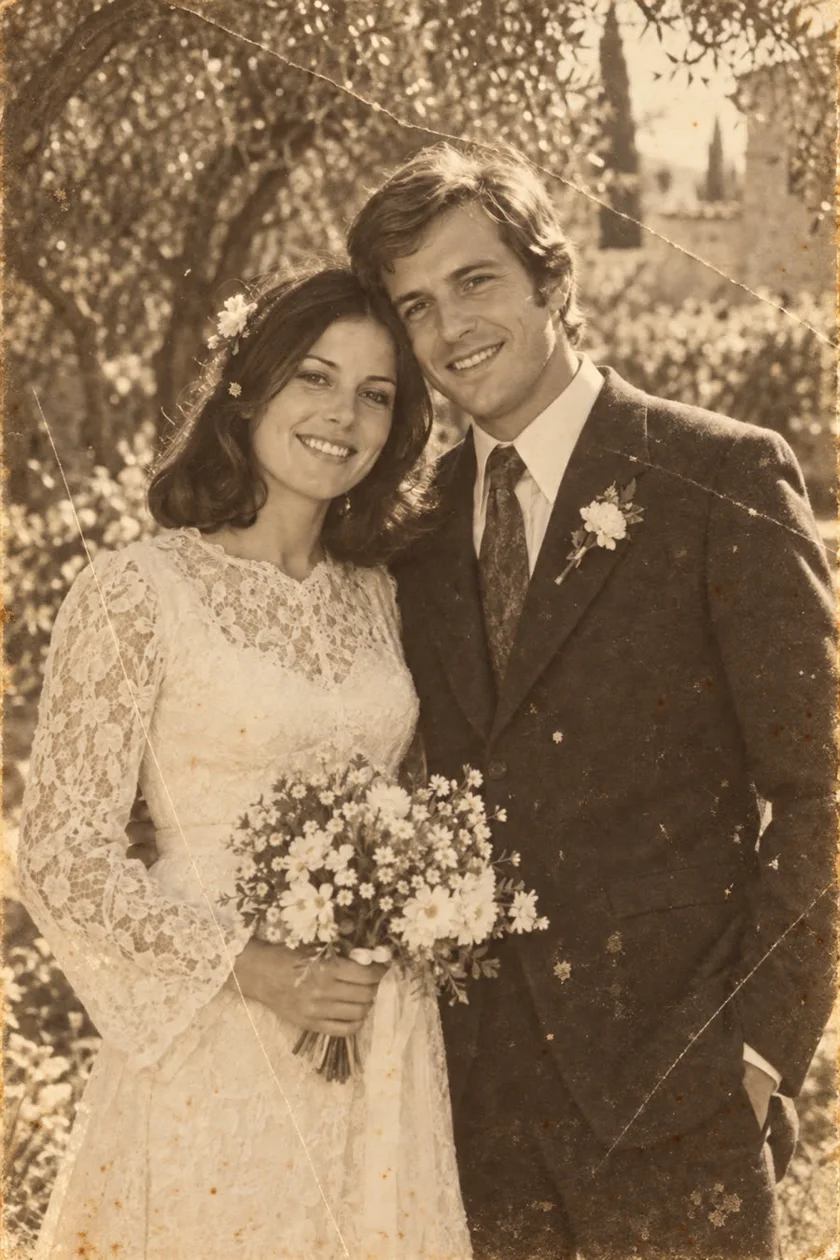
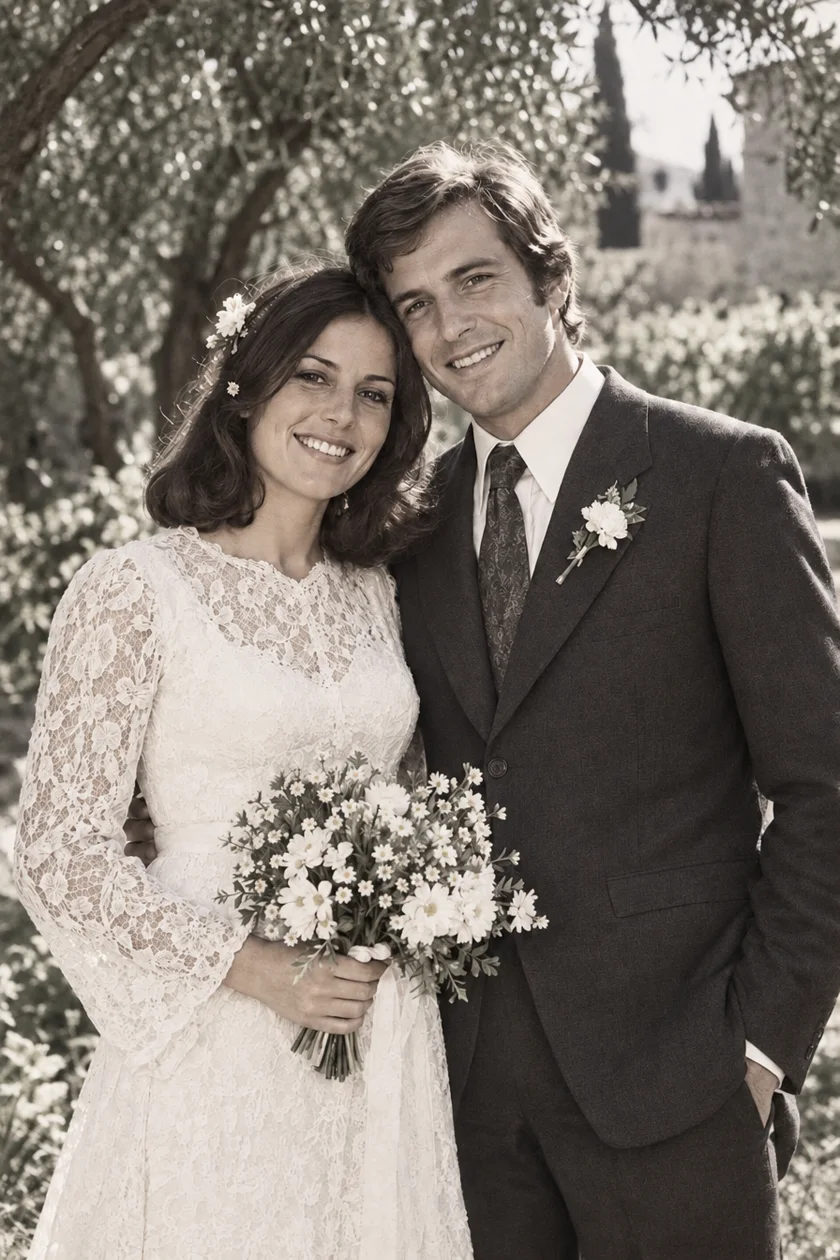
A scratched black-and-white portrait may need cleaner facial detail without losing its monochrome character. A faded colour print may need a better balance of its existing colours. Neither task automatically requires inventing a new palette.
Colorization is a separate creative choice. It can make an old scene feel more immediate, but the added colours require interpretation. Decide whether your priority is a faithful-looking family archive, a decorative print or an imaginative version to share.
| Your goal | The appropriate process | What to inspect |
|---|---|---|
| Reduce scratches, stains or creases | Restoration | Faces, edges and any repaired areas |
| Improve a faded colour photograph | Restoration or colour correction | Skin tones and the remaining original colours |
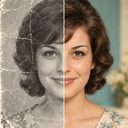
| Add colour to a monochrome photograph | Colorization | Colour choices and evidence for them |
| Keep a black-and-white portrait black and white | Restoration that respects monochrome | Tonal balance, likeness and unchanged composition |
Plausible colour is not proof of original colour
A convincing blue coat is not evidence that the coat was blue. Without a colour reference, several interpretations may look believable. Family recollections, another colour photograph or a surviving object can help you make an informed choice, but keep the source of that information with the result.
Adobe describes its Colorize filter as assigning colours automatically and allowing users to change those choices. That ability to revise the palette is useful when a known detail matters, such as a uniform, wedding dress or distinctive front door.
Restoration also needs a careful comparison
A restored face can look sharp and still differ from the original. When important information is missing, an automatic result may supply convincing detail rather than recover something that was visible. Do not treat newly clear writing, badges or facial features as historical evidence without checking the source.
Compare the pictures at a similar size, then inspect important areas more closely. Look for changes to the eyes, mouth, hairstyle, clothing and background. The best version for your family may retain some grain or damage rather than replace a familiar expression with a smoother but less recognisable face.
- Check whether each person still looks like the person in the original.
- Read any signs, dates or handwriting against the untouched scan.
- Look at boundaries around hair, glasses and repaired tears.
- Reject improvements that make the photograph less trustworthy to you.
What PixAgain does with black-and-white photos
PixAgain focuses on restoration. Its restoration instructions aim to preserve black-and-white or sepia in a monochrome original, and existing colours in a colour original. It is not a dedicated colorization tool and does not offer a colour brush or a palette selector.
Select your image in Photo mode and tap Restore. Start with the first successful photo restoration offered free, then compare the result with your source. If you also want a colour interpretation, save the restored copy and use a separate colorization tool that gives you the control your project needs.
Keep the archive and the interpretation side by side
Save an untouched scan, a restored copy and, if you create one, a separately named colorized version. Simple names such as “original scan”, “restored” and “colorized interpretation” prevent confusion when files are copied between family members.
Record what you know separately from what the software supplied. “Dress colour confirmed by Anna” is more informative than “original colours restored” when the starting photograph was black and white. For a display print, choose the version you enjoy; for the family record, keep the original and the explanation together.
Restore the photo. Keep the feeling.
Start with one free restoration. Decide what comes next after you see your result.
 Plans ↗
Good questions.
Does restoring a black-and-white photograph add colour?
Not necessarily. Restoration and colorization are different tasks. PixAgain’s restoration is instructed to preserve the monochrome or sepia character of the original.
Can AI know the exact original colours?
A plausible result alone does not establish the original colours. Use independent colour references when accuracy matters, and label any interpretation clearly.
Should I restore or colorize first?
If damage obscures the photograph, make and inspect a restored copy first. Keep the untouched scan, then create colorization as a separate version if you want it.
Sources & further reading
Written with AI assistance; product details checked against PixAgain. Read our editorial approach.